
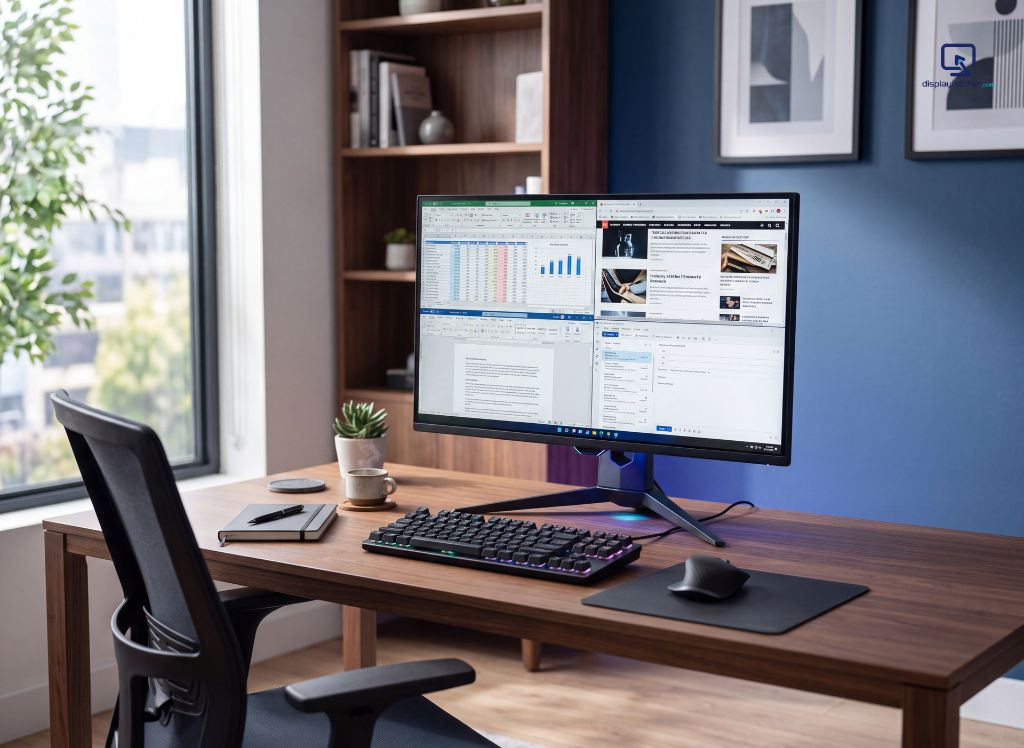
If you’ve ever shopped for a new monitor, you’ve probably noticed that gaming displays now dominate the shelves. High refresh rates, curved panels, RGB lighting — they look incredible in product photos. But when I needed to replace my aging office monitor last year, I hesitated. Could a gaming monitor actually pull double duty as a productivity machine, or was I about to buy an expensive distraction?
I decided to find out the only way that actually matters: by using one as my primary work display, every day, for six months. I write, edit spreadsheets, sit in video calls, and design the occasional presentation — none of that screams “gamer setup.” Here’s what I learned, backed by both my own daily experience and what display engineers and reviewers consistently confirm.
My Setup and Why I Tried This Experiment
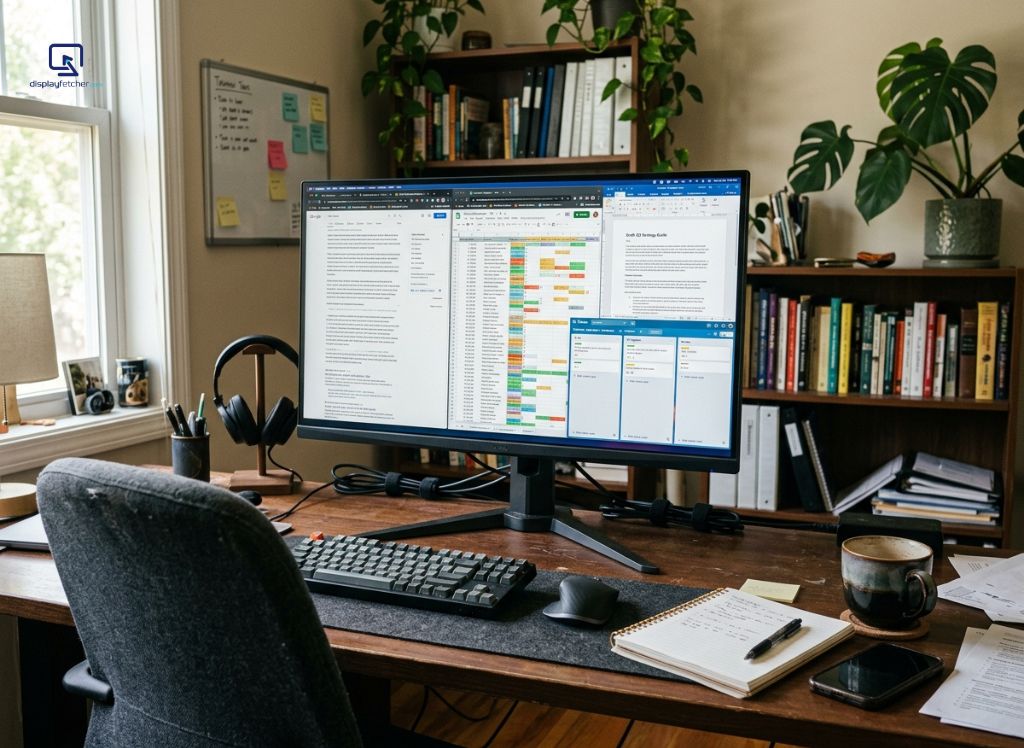
I switched from a standard 60Hz office monitor to a 27-inch 1440p gaming monitor with a 165Hz refresh rate and an IPS panel. My reasoning was simple: if a screen is good enough to track fast-moving pixels in a competitive shooter, it should have no trouble rendering a spreadsheet or a Zoom call.
I work as a full-time content strategist, which means my day is a mix of long writing sessions, research across a dozen browser tabs, video meetings, and light photo editing for blog graphics. This isn’t a lab test — it’s a real-world stress test from someone whose income depends on getting the details right.
The Genuine Advantages I Noticed
Smoother scrolling changed how tiring my day felt. This was the biggest surprise. Scrolling through long documents or web pages at 165Hz instead of 60Hz is noticeably smoother — less visual “juddering,” especially during fast mouse movements. It sounds trivial until you notice, days later, that your eyes feel less fatigued by end of day.
Response time helped more than I expected in calls. Gaming monitors are built to minimize input lag and ghosting. During video calls with screen sharing, cursor movement and window transitions felt crisper than on my old panel. It’s a small thing, but small things add up over an 8-hour day.
Color accuracy depends entirely on panel type, not the “gaming” label. My monitor uses an IPS panel, which gave me accurate, consistent colors for photo editing and design review. That’s not a gaming feature — it’s a panel technology feature that many gaming monitors happen to include. This distinction matters a lot when you’re choosing one for work.
Adjustable refresh rate meant I could dial back for battery or eye comfort. Most gaming monitors let you toggle refresh rate. On long writing days, I sometimes drop mine to 60Hz just to reduce eye strain — flexibility a fixed-refresh office monitor doesn’t offer.
Where Gaming Monitors Fall Short for Work
I want to be honest about the downsides, because I ran into real ones.
Curved gaming monitors can distort straight lines and spreadsheets. I tested a curved model for a few weeks before switching to flat. Columns and gridlines in Excel looked subtly warped near the edges — a non-issue in games, but genuinely annoying for data-heavy work.
Some panels sacrifice color accuracy for speed. TN panels, common in budget gaming monitors, prioritize refresh rate over color reproduction. If your work involves photo editing, video, or design, a TN-panel gaming monitor can actually be a downgrade from a mid-range office IPS display.
Ergonomics are often an afterthought. Many gaming monitors ship with stands built for aesthetics, not adjustability. I had to buy a separate monitor arm because the stock stand couldn’t tilt or raise the screen to a proper eye-level height — something office-focused monitors usually handle better out of the box.
Blue light and flicker settings vary widely. Not every gaming monitor includes proper flicker-free backlighting or a genuinely effective low blue light mode. I had to check specs carefully rather than assume “gaming” meant “eye-friendly.”
So, Are Gaming Monitors Good for Work? My Verdict
After six months, my answer is: yes, with conditions. A gaming monitor can be an excellent work display if you choose the right specs — specifically an IPS or OLED panel, a flat screen, height-adjustable stand or VESA mount compatibility, and a genuine low blue light or flicker-free mode. The high refresh rate isn’t just wasted on office work; it actively makes scrolling and window management feel smoother.
Where I’d caution against it: if you’re buying based on marketing alone — grabbing a curved, TN-panel, RGB-lit monitor because it’s on sale — you may end up with worse ergonomics and color accuracy than a purpose-built office monitor at the same price.
Quick Buying Checklist (What I’d Look For Now)
- Panel type: IPS or OLED for accurate color; avoid TN unless budget is the only priority
- Shape: Flat, not curved, if spreadsheets or design work are part of your day
- Stand: Height, tilt, and swivel adjustment, or VESA mount compatibility for an arm
- Refresh rate: 120Hz+ genuinely improves everyday scrolling comfort, not just gaming
- Eye comfort: Confirm flicker-free backlighting and a real low blue light mode, not just a marketing badge
Final Thoughts
I went into this expecting a gimmick and came out a convert — just not an uncritical one. The refresh rate and response time genuinely made my workday feel smoother, but I had to actively avoid the flashier gaming-specific designs that sacrifice ergonomics and color accuracy for looks. If you’re considering the switch, treat “gaming monitor” as a category with wide quality variance, not a guarantee of either good or bad office performance — then match the specs to how you actually work.