It’s a common question for gamers and tech enthusiasts alike: can you actually play games on a monitor if you don’t have a computer hooked up to it? Many people think monitors are strictly for PCs, but the world of gaming technology has opened up so many more possibilities. You might be surprised at how many ways you can enjoy your favorite games without needing a full-blown desktop setup.
This guide will walk you through all the cool ways to game using just a monitor. We’ll explore everything from plugging in consoles to using newer streaming services. Get ready to see how flexible your setup can be!
You can play games on a monitor without a PC by connecting consoles like PlayStation or Xbox, using streaming services via devices like Apple TV or Chromecast, playing games directly on smart TV apps, or even using handheld devices with display output capabilities. These methods bypass the need for a traditional computer.
Gaming on a Monitor Without a PC: The Big Picture
Monitors are essentially screens that display images. For a long time, they were tied to computers. But as technology grew, so did the ways we can use them.
Think about your TV. It’s a big screen, right? You watch shows, stream movies, and maybe even play games on it.
Monitors can do a lot of the same things.
The key is what you connect to the monitor. If it’s not a PC, what else can it be? We’ll dive into the main options that let you bypass the PC and still get your game on.
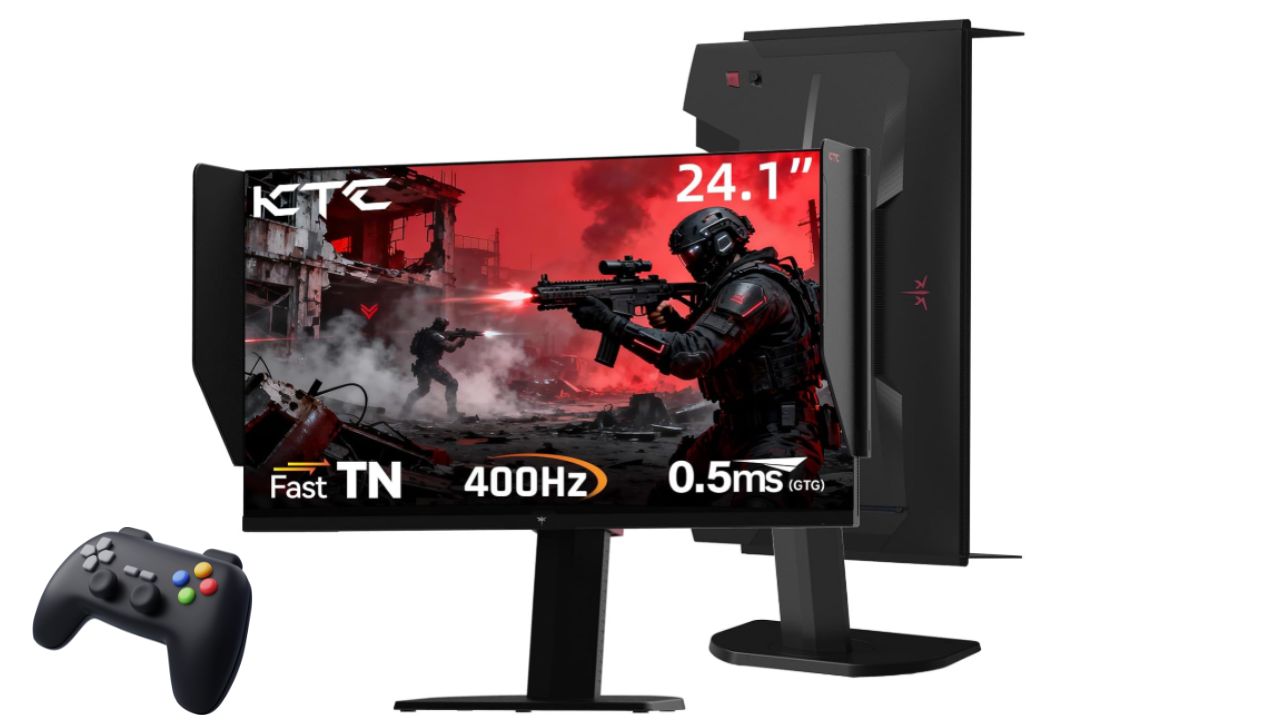
Connecting Your Gaming Consoles
This is perhaps the most common way people play games without a PC. Gaming consoles are powerful machines designed specifically for playing video games. They have their own operating systems and do all the heavy lifting for game processing.
Think of consoles like the PlayStation 5, Xbox Series X/S, or even the Nintendo Switch. These devices have HDMI ports, just like most modern monitors and TVs. It’s as simple as plugging one end of an HDMI cable into your console and the other into your monitor’s HDMI input.
Once connected, you’ll need to select the correct input source on your monitor. Most monitors have buttons or a menu system to switch between different inputs (like HDMI 1, HDMI 2, DisplayPort, etc.). Just select the one where your console is plugged in.
Console Performance on Monitors
Monitors offer a great gaming experience for consoles. Many monitors today feature high refresh rates (like 120Hz or 144Hz) and low response times. These specs are fantastic for gaming.
They help make fast-paced action look smooth and reduce blur.
Even if your monitor isn’t top-of-the-line, it will likely display console games beautifully. Standard 60Hz monitors are still excellent for most console titles. The difference you’ll notice is how crisp and responsive the games feel compared to playing on older TVs or through less direct methods.
You might also want to consider the monitor’s resolution. Most consoles output in 1080p (Full HD) or 4K. Make sure your monitor supports these resolutions for the best picture quality.
A 1080p monitor will work fine with a console that outputs 1080p. A 4K monitor will give you a sharper image if your console supports 4K gaming.
Audio Considerations
A big difference between monitors and TVs is often built-in speakers. Many monitors have very basic or no speakers at all. If your monitor doesn’t have speakers, you’ll need an external audio solution.
This could be a pair of computer speakers that plug into your console’s audio jack (if available) or directly into a powered USB port. You could also use gaming headsets that connect via USB or a 3.5mm audio jack. For a more immersive experience, a soundbar is also a great option.
Some consoles and monitors support audio over HDMI. This means the sound signal travels through the same cable as the video. If your monitor has audio output ports (like a headphone jack), it might also pass through the audio from the HDMI signal.
Always check your monitor’s manual for specific audio capabilities.
Console Connection Checklist
- Console: Make sure it’s powered on.
- HDMI Cable: A good quality cable is important.
- Monitor: Ensure it has an HDMI input port.
- Power Cables: For both the console and monitor.
- Audio Output (if needed): Speakers or headphones.
Cloud Gaming Services
Cloud gaming has changed the landscape for playing games without powerful hardware. Services like Xbox Cloud Gaming, NVIDIA GeForce NOW, and Amazon Luna let you stream games over the internet. You don’t need to download or install anything on a local device.
The game runs on powerful servers far away, and the video is streamed to your screen.
This is where a monitor can shine without a PC. You just need a device that can connect to the internet and display the streamed video. Many modern monitors have built-in Wi-Fi or Ethernet ports, or you can use external streaming devices.
These services require a strong and stable internet connection. The better your connection, the smoother the gameplay will be. Lag and stuttering can happen if your internet isn’t up to par.
How Cloud Gaming Works with Monitors
To use cloud gaming on a monitor without a PC, you typically need a few things:
- A Subscription: Most cloud gaming services require a monthly fee.
- A Compatible Controller: You’ll need a game controller, often a Bluetooth one, to play.
- A Streaming Device: This is where the magic happens. You can use devices like:
- Smart TV Stick or Box: Apple TV, Amazon Fire TV Stick, Google Chromecast with Google TV. These plug into your monitor’s HDMI port and connect to your Wi-Fi.
- Dedicated Gaming Hubs: Some services offer their own streaming boxes.
- Laptops or Tablets: Even if you’re not using a PC, you could use a laptop or tablet with its browser to access the service and then connect that device to your monitor.
- A Good Internet Connection: Crucial for smooth streaming.
You connect your chosen streaming device to your monitor’s HDMI port. Then, you launch the cloud gaming app on that device, log in to your subscription, and start playing. The monitor acts as the display, and the controller sends your inputs to the cloud service.
What’s great about this is that the monitor’s specs (like refresh rate and response time) still matter. A higher refresh rate monitor can make the streamed game look even better, making it feel more like you’re playing on a local machine.
Cloud Gaming Essentials
Requirement: Strong internet (minimum 10-20 Mbps recommended).
Input Device: Bluetooth controller (Xbox, PlayStation, or other compatible). Some services support keyboard and mouse.
Display: Monitor with HDMI input.
Streaming Hub: Device to run the app (e.g., Apple TV, Fire Stick, Chromecast).
Smart TV Apps and Gaming
This is a newer, but growing, way to play games. Many modern smart TVs come with built-in operating systems and app stores. Some of these apps are games that can be played directly on the TV.
While you’re thinking about a monitor, consider this: some monitors are now being made with smart TV features. These are often marketed as “Smart Monitors.” They have their own operating systems (like Tizen for Samsung or webOS for LG) and can run apps directly.
If your monitor has these smart features, you can often download gaming apps right onto it. This could include:
- Cloud Gaming Apps: Direct apps for Xbox Cloud Gaming, GeForce NOW, etc.
- Mobile Game Ports: Some monitors can run Android apps, giving access to mobile games.
- Game Streaming from Consoles: Some smart monitors can stream games directly from your home console over your network (like Samsung’s SmartThings app for Xbox streaming).
This is the closest you get to playing on a monitor without needing any external device besides a controller. You just need your monitor, your internet connection, and a controller.
The experience here is similar to using a streaming stick. The monitor’s internal processor runs the app, streams the game, and displays it. The quality of the game you see depends on the monitor’s display technology and its processing power for running the apps smoothly.
You’ll still need a controller for most gaming on these smart monitors, and a solid internet connection is key for any streaming.
Smart Monitor Gaming Quick Facts
Built-in Apps: Access streaming services and games directly.
Connectivity: Needs Wi-Fi or Ethernet for streaming.
Input: Requires a connected game controller.
Performance: Depends on the monitor’s internal processor and display.
Handheld Devices and Display Output
Some handheld gaming devices have a neat feature: they can output their display to an external screen. The most popular example is the Nintendo Switch. When docked, the Switch outputs its video signal via HDMI to a TV or, in this case, a monitor.
Other devices, like some smartphones and tablets, also support video output. This can be through USB-C to HDMI adapters or wireless casting technologies. You connect your handheld device to your monitor, and the game you play on the small screen appears on the large monitor.
This method essentially turns your monitor into a bigger screen for your handheld device. It’s great for sharing the experience or just enjoying games on a larger display.
Nintendo Switch: Dock your Switch and connect it to the dock’s HDMI port. Then connect the dock to your monitor’s HDMI input. You can use the Joy-Cons or a Pro Controller to play.
Smartphones/Tablets: Check if your device supports display output. This is often called “DisplayPort Alternate Mode” over USB-C, or technologies like Samsung DeX. You’ll need the right adapter or cable to connect your device to the monitor’s HDMI port.
The quality of the experience will depend on the handheld device itself and the monitor’s ability to display its signal. Many modern smartphones and tablets can output at resolutions like 1080p, which looks great on most monitors.
Handheld to Monitor Setup
Device: Nintendo Switch, compatible smartphone, or tablet.
Connection:
- Switch: Dock and HDMI cable to monitor.
- Phone/Tablet: USB-C to HDMI adapter or cable.
Controller: Device’s built-in controls or external Bluetooth controller.
Retro Gaming and Emulation
For those who love classic games, monitors can also be a gateway to the past. This often involves emulation, where software on a device mimics the hardware of older gaming systems.
While emulation often happens on PCs, there are other ways. Small single-board computers like the Raspberry Pi can be set up to run emulation software. These devices are tiny and cheap, and they can connect to a monitor via HDMI just like a PC.
You can build a dedicated retro gaming machine using a Raspberry Pi. Load it with an operating system like RetroPie, which is designed for emulation. Then, you can connect your controllers (USB or Bluetooth) and play a vast library of classic games from systems like the NES, SNES, Genesis, and PlayStation 1.
Even some modern Android TV boxes or streaming devices can run emulators. If your monitor can run these devices, you can get into retro gaming.
The benefit here is that retro games are not graphically demanding. Even a basic monitor with a lower refresh rate will display them perfectly. The focus is on accurate reproduction of the original gaming experience.
Retro Gaming Setup Ideas
Device: Raspberry Pi (with RetroPie/Lakka), mini PC, or some Android boxes.
Connection: HDMI to monitor.
Controller: USB or Bluetooth retro-style controllers.
Software: Emulation system pre-loaded or installed.
Connecting Old Consoles
What about older consoles that don’t use HDMI? Think original Xbox, PlayStation 2, GameCube, or older systems like the N64 or Super NES.
Most monitors only have HDMI inputs these days. Older consoles used composite (yellow, red, white RCA cables) or component (red, green, blue RCA cables) connections. To connect these to a modern monitor, you’ll need an adapter or converter.
These converters take the analog signal from your old console and convert it into a digital HDMI signal that your monitor can understand. You plug the old console into the converter, and then connect the converter to your monitor with an HDMI cable.
The picture quality from these older consoles, especially when converted to HDMI, might not be as sharp as modern games. They were designed for standard definition TVs. However, for many gamers, the nostalgia and fun of playing these classics on a bigger screen is worth it.
Ensure you get a converter that matches the type of output your old console uses (composite or component). Some converters also upscale the signal, which can help improve the image clarity on a modern monitor.
Connecting Older Consoles
Console: Older systems (PS2, Xbox, N64, etc.).
Converter: Analog to HDMI adapter (composite/component to HDMI).
Cables: Original console cables and an HDMI cable.
Monitor: With an HDMI input.
What This Means for Your Gaming Setup
The ability to play games on a monitor without a PC offers a lot of freedom. You aren’t locked into a desk setup. You can set up a gaming station in different rooms, use a portable monitor, or even create a dedicated gaming corner that doesn’t involve a computer tower.
This flexibility is great for people with limited space or those who want to consolidate their entertainment devices. Instead of a PC for gaming, a console, and maybe a streaming box, you might be able to use just one or two devices connected to a monitor.
Consider the types of games you play. Fast-paced shooters benefit most from monitors with high refresh rates and low response times. Slower-paced RPGs or strategy games might be perfectly fine on a standard 60Hz monitor.
The same goes for older games or less demanding indie titles.
When is it Normal to Game on a Monitor Without a PC?
It’s completely normal and increasingly common to game on a monitor without a PC. Here are some scenarios where it makes sense:
- Console Gamers: This is the most frequent use case. Most console players use monitors or TVs.
- Cloud Gamers: Anyone who subscribes to cloud gaming services and uses a monitor as their display.
- Smart Monitor Owners: Users of modern smart monitors who stream games or use built-in gaming apps.
- Retro Enthusiasts: People building dedicated retro gaming machines with devices like Raspberry Pi.
- Mobile Gamers: Those who prefer playing mobile games on a larger screen.
Basically, if you have a device that outputs a video signal and a controller, you can likely play games on a monitor.
When Should You Worry?
You generally don’t need to “worry” about gaming on a monitor without a PC. The technology is designed to work this way. However, there are a few things that might indicate an issue:
- Screen Burn-In: If you leave static images on a monitor for very long periods, especially older OLED or Plasma displays, you might see image persistence. This is less common with modern LCD/LED monitors. It’s more of a risk with static elements in games if left for hours and hours.
- Input Lag: If you notice a significant delay between pressing a button and seeing the action on screen, it could be due to “Game Mode” settings on your monitor, or the monitor’s internal processing. Many monitors have a “Game Mode” that reduces this.
- Poor Picture Quality: If games look blurry, pixelated, or the colors are off, check your resolution settings on the source device and your monitor. Also, ensure you’re using a good quality cable.
- Audio Issues: If you have no sound, check your audio output settings on the console or device, and ensure your monitor is configured to receive audio via HDMI.
Most of these are minor adjustments or settings rather than serious problems.
Quick Checks for Your Setup
Here are some simple checks if you’re setting up a monitor for gaming without a PC:
- Check Monitor Inputs: Does it have HDMI? This is the most common and easiest connection.
- Check Device Outputs: Does your console or streaming device have HDMI?
- Resolution Match: Does your monitor support the resolution your device is outputting (e.g., 1080p, 4K)?
- Refresh Rate: For fast games, a higher refresh rate monitor (120Hz+) will look smoother if your device supports it (like PS5 or Xbox Series X/S).
- Audio: If no speakers, have your headphones or external speakers ready.
Frequently Asked Questions
Can I play PC games on a monitor without a PC?
You cannot play PC games directly on a monitor without a PC. PC games require the processing power and software of a computer. However, you can play PC games through cloud gaming services like GeForce NOW, which stream the game to your monitor via a compatible device.
This still requires a PC to be running the game on the server, but not in your home.
Do I need special cables to connect a game console to a monitor?
Usually, you only need a standard HDMI cable. Most modern game consoles (like PlayStation, Xbox, and Nintendo Switch) use HDMI for both video and audio output. Ensure your monitor also has an HDMI input port.
What is input lag and how does it affect gaming on a monitor?
Input lag is the delay between your action (like pressing a button) and when you see the result on your screen. High input lag can make games feel unresponsive, especially fast-paced ones. Many monitors have a “Game Mode” that reduces input lag by turning off extra image processing.
It’s important to check your monitor’s input lag, especially if you’re sensitive to it.
Can I use my monitor as a TV if it has gaming capabilities?
Some monitors are designed with smart features or have enough inputs to act like a TV. If your monitor has built-in streaming apps (like a smart monitor) or multiple HDMI ports, you can connect various devices like streaming sticks, consoles, or even Blu-ray players, effectively using it as a display for entertainment similar to a TV.
Is a monitor better for gaming than a TV?
It depends on the specific monitor and TV. Many gaming monitors offer higher refresh rates (120Hz, 144Hz, 240Hz) and lower response times than typical TVs, which is great for fast-paced games. However, modern high-end TVs often have excellent refresh rates (120Hz) and features like VRR (Variable Refresh Rate) that are also fantastic for gaming.
For general console gaming, both can be excellent.
How can I get sound if my monitor doesn’t have speakers?
If your monitor lacks built-in speakers, you’ll need external audio. Common options include:
- Headphones: Plug directly into your console’s controller or audio jack, or into your monitor’s headphone port if it has one.
- External Speakers: Connect powered computer speakers to your console or device.
- Soundbar: Connect a soundbar via HDMI ARC or optical cable for richer audio.
Make sure to set your audio output correctly on your gaming device.
Conclusion
So, yes, you absolutely can play games on a monitor without a PC! Whether you’re plugging in a trusty console, diving into the world of cloud gaming, using smart monitor apps, or even hooking up a handheld device, your monitor is a versatile gaming display.
The key is understanding what kind of device you’ll connect and ensuring it’s compatible with your monitor’s inputs and features. Enjoy exploring all the ways to game without needing a traditional computer setup!