To connect wired headphones to Windows 10, plug them into the 3.5mm jack or USB port. If you don’t hear sound, right-click the speaker icon in the taskbar, select “Open Sound settings,” and ensure your headphones are selected under the “Output” dropdown menu.
My Journey with Windows Audio Troubleshooting
When I first started building custom workstations for audio editing, I assumed that plugging in a pair of high-end studio headphones would be “plug and play.” I was wrong. I remember sitting in front of a brand-new Windows 10 build, plugging my Sennheiser HD600s into the front panel jack, and hearing absolutely nothing. I spent an hour updating drivers and restarting my machine, only to realize the front panel audio header wasn’t fully seated on the motherboard.
Since then, I’ve navigated every quirk of the Windows 10 audio stack. Whether you are using a standard 3.5mm analog jack or a modern USB-C interface, the process is usually seamless—but when it isn’t, you need to know exactly where the software settings hide.
Understanding Your Hardware Connections
Before we touch any software, we need to identify how your hardware communicates with your PC. Windows 10 treats different connection types in distinct ways.
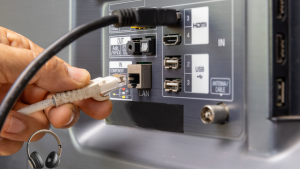
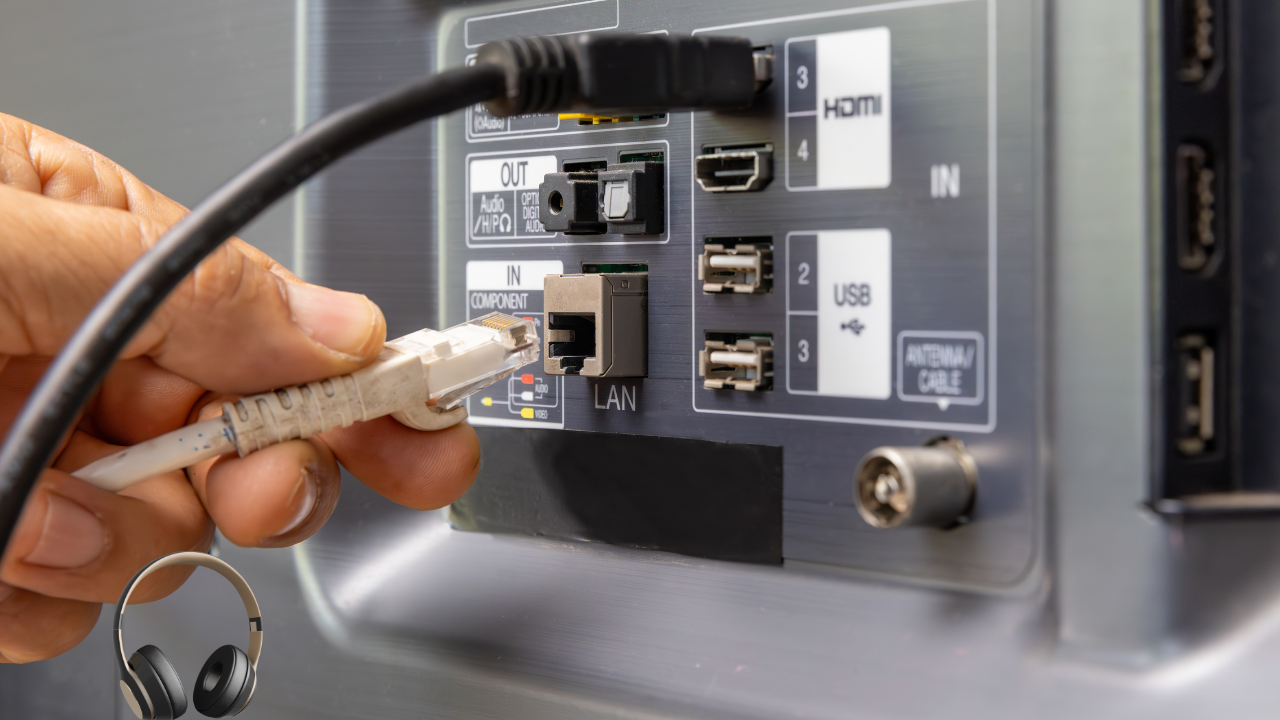
The 3.5mm Analog Jack
Most motherboards and laptop chassis feature a 3.5mm TRS (Tip-Ring-Sleeve) port. This relies on your PC’s internal DAC (Digital-to-Analog Converter). If you have a budget motherboard, you might experience “electrical noise” or a faint buzzing sound because the audio circuitry is sitting right next to the noisy components of your GPU and CPU.
USB Headsets
USB headphones bypass your PC’s onboard sound card entirely. They contain their own internal DAC. In my experience, these are more consistent across different computers because they don’t rely on the motherboard’s audio drivers, but they do require the specific drivers provided by the manufacturer (like Logitech or Razer) for features like surround sound.
| Connection Type | Audio Quality | Ease of Use | Best For |
|---|---|---|---|
| 3.5mm Analog | Depends on Motherboard | High | Audiophiles/Studio Gear |
| USB-A/C | Consistent | Very High | Gaming/Office Calls |
| External DAC/Amp | Audiophile Grade | Moderate | Critical Listening |
Step-by-Step: Getting Your Audio Working
If you’ve plugged your headphones in and the system isn’t automatically switching over, follow this checklist to force the connection.
- Check the Physical Connection: Ensure the jack is pushed all the way in. It should “click.” If using a desktop, try the rear green port instead of the front panel to rule out case wiring issues.
- Select the Correct Output: Click the speaker icon in the bottom right of your taskbar. Click the arrow next to your current device and select your headphones from the list.
- Access the Sound Control Panel: Right-click the speaker icon, select “Sounds,” and navigate to the “Playback” tab.
- Set as Default: Find your headphones, right-click them, and select “Set as Default Device.”
- Disable Enhancements: Sometimes, Windows “Audio Enhancements” cause stuttering. In the Sound Control Panel, right-click your device, go to “Properties,” and check the “Enhancements” tab to disable them if you experience crackling.
Advanced Troubleshooting: When Things Go Wrong
In my years of troubleshooting, I’ve found that the most common culprit isn’t the hardware—it’s the driver. Windows 10 occasionally forces a generic “High Definition Audio” driver that doesn’t play nice with specialized gaming headsets.
If your headphones are detected but sound distorted, visit the “Device Manager.” You can get there by right-clicking the Start button and selecting it from the menu. Expand “Sound, video and game controllers.” If you see a yellow exclamation mark next to your audio driver, right-click it, select “Update driver,” and choose “Search automatically for drivers.”
A Caution on Front Panel Audio
If you are using a custom-built PC, the front-panel 3.5mm jack is connected to the motherboard via a thin ribbon cable. If your audio sounds thin or lacks bass, it’s likely because the front panel cable lacks proper shielding. Always plug your primary headphones into the motherboard’s rear I/O panel for the cleanest, most interference-free signal.
Expert Tips for Better Sound
To get the most out of your wired setup, I recommend looking into “Sample Rate” settings. Most people leave this at the default, but you can improve clarity for high-fidelity headphones.
Go to the Sound Control Panel, right-click your headphones, select “Properties,” and navigate to the “Advanced” tab. Change the “Default Format” to 24-bit, 48000 Hz (Studio Quality). You will notice a subtle but distinct improvement in dynamic range, especially if you are listening to lossless audio files.
Final Thoughts
Connecting wired headphones to Windows 10 is usually a simple task, but it’s one that requires a bit of patience when the software doesn’t cooperate. Through my own trial and error, I’ve learned that the “Sound Control Panel” is your best friend—it’s far more reliable than the simplified Windows 10 settings menu. If you follow the steps above, you should be able to bypass the most common connectivity headaches and get back to your music or gaming without further delay. Just remember: if all else fails, check your physical connections first; you’d be surprised how often a loose cable is the only thing standing between you and great sound.