Contrast ratio is the difference between the brightest white and the darkest black a monitor can show at the same time. Black level is how dark the screen’s “black” really is, measured in nits (cd/m²). Lower black levels give higher contrast, deeper shadows and a more three-dimensional image, especially in dark rooms.
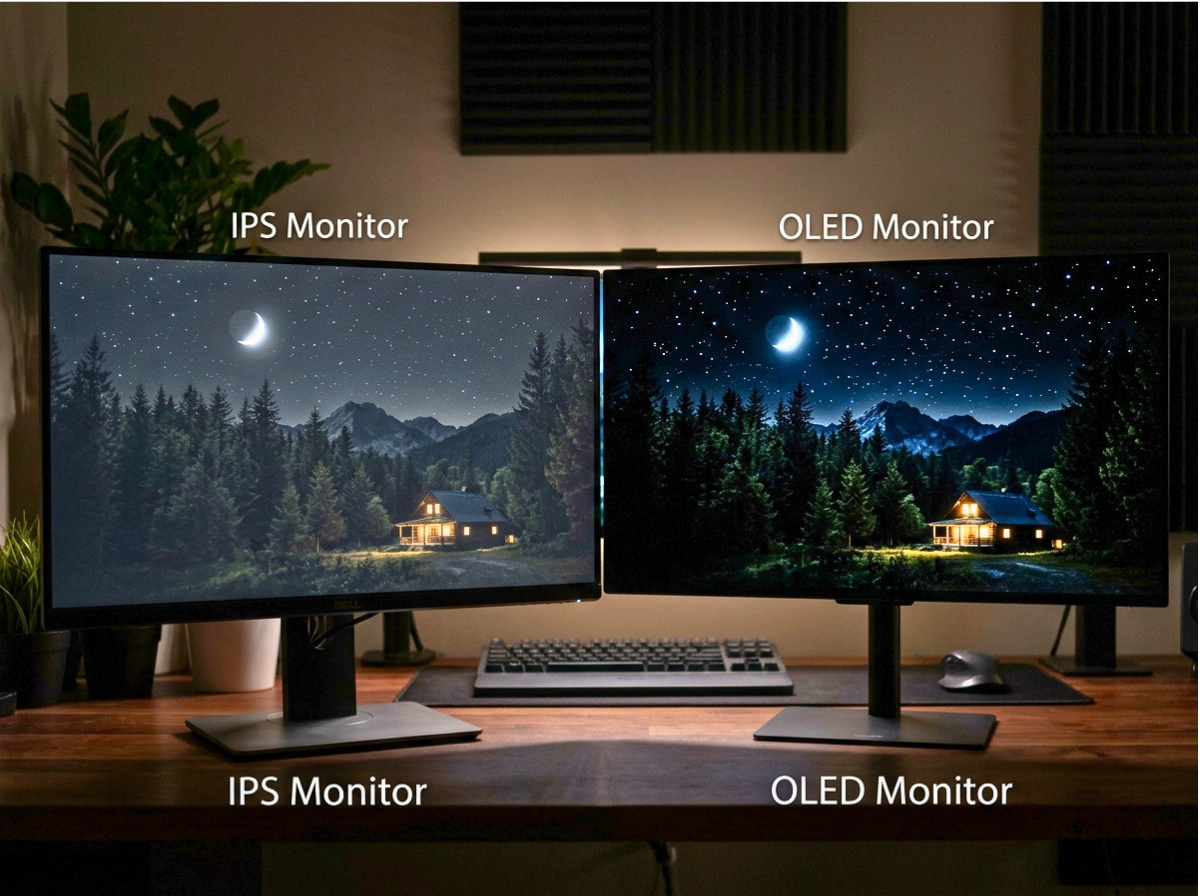
As a general guide, typical IPS panels reach about 1,000:1, VA panels about 3,000:1 to 6,000:1, and OLED panels produce near-perfect black because each pixel turns off completely. Mini-LED monitors use local dimming to push contrast far beyond what the panel alone can do, but with trade-offs covered below.
Why Black Levels Matter More Than You Think
Most people shop by resolution and refresh rate, then wonder why a monitor looks flat or washed out. Black level is a big reason. When blacks are raised to a dark grey, three things happen:
- Shadow detail disappears or looks muddy. Dark scenes in films and games lose depth.
- Colors look less rich. Saturation and perceived punch depend on the contrast between dark and light areas.
- Dark rooms expose the problem. A backlit grey “black” is distracting in low light, while in a bright office it is barely visible.
If you mostly work with spreadsheets in a bright room, black levels are a minor concern. If you watch movies, play atmospheric games or edit photo and video in dim lighting, they may be the single most important spec.
How Contrast Ratio Is Calculated
The formula is simple:
Contrast ratio = white luminance ÷ black luminance
For example, a monitor with 300 nits white and 0.3 nits black has a 1,000:1 contrast ratio. Drop the black level to 0.05 nits and the same white gives 6,000:1.
Two types of contrast are worth separating:
- Static (native) contrast is what the panel produces at a single moment with a fixed backlight. This is the honest number.
- Dynamic contrast is what manufacturers claim when the backlight dims or brightens between scenes. Figures like 100,000,000:1 are marketing numbers measured under conditions you will not see in daily use. Ignore them.
Panel Technologies Compared
| Panel type | Typical native contrast | Black level behavior | Main weakness |
|---|---|---|---|
| IPS | ~1,000:1 | Grey blacks, visible “IPS glow” from angles | Lowest contrast of the main types |
| Nano IPS / newer IPS | ~1,000:1 to 1,500:1 | Slightly better, wider color | Still glows in dark rooms |
| VA | ~3,000:1 to 6,000:1 | Deep blacks for an LCD | Slower dark transitions in some models, narrower viewing angles |
| TN | ~600:1 to 1,000:1 | Grey and shifts with angle | Poor colors and angles |
| OLED / QD-OLED | Effectively infinite | Pixels turn fully off | Risk of burn-in, raised blacks in bright rooms, ABL dimming |
| Mini-LED (FALD) | Panel contrast plus local dimming | Excellent in large dark scenes | Blooming around bright objects |
These are typical ranges. Individual models vary, so check independent lab measurements rather than relying on spec sheets alone.
IPS: Accurate Color, Weaker Blacks
IPS panels are loved for wide viewing angles and color accuracy, but their native contrast sits around 1,000:1. In a dark room you will often notice IPS glow, a soft haze in the corners that gets worse when you view from an angle. A small amount is normal. Severe glow or uneven backlight bleed is worth an exchange under warranty.
VA: The Contrast Budget Choice
VA panels offer roughly three to six times the contrast of IPS at similar prices, which makes them a strong option for movies and dim-room gaming. The trade-offs are narrower viewing angles, some color shift and, on certain models, smearing in dark scenes because of slower pixel transitions. Check response-time tests for dark-to-dark transitions if you game.
OLED: Perfect Black, With Conditions
OLED pixels emit their own light, so a black pixel is simply off. This gives the best possible black level and exceptional per-pixel contrast. The caveats are practical:
- Burn-in risk with static elements such as taskbars and HUDs, which manufacturers mitigate with pixel shifting and refresh routines.
- Raised blacks in bright rooms, because reflections off the panel surface lift perceived black. Glossy and matte coatings behave differently.
- Brightness limiting on large bright windows, which reduces full-screen white brightness.
Mini-LED: High Contrast Through Local Dimming
Mini-LED monitors use many small LED zones behind an LCD panel and dim the zones that sit behind dark content. More zones generally means better control. The downside is blooming, a halo around bright objects on dark backgrounds, such as white subtitles or a mouse cursor on black. Always check the number of zones and whether the local dimming can be turned off for desktop work.
How We Evaluate Black Levels (Our Testing Method)
E-E-A-T note: This section is where first-hand experience is demonstrated. Fill it with your real process, equipment and dates. If you do not test monitors yourself, cite the lab you rely on and say so plainly.
When we assess a monitor’s contrast and black levels, we use:
- Measurement device: [e.g. colorimeter or spectrophotometer model] with [software name]
- Test environment: [room lighting level in lux, e.g. a controlled dark room]
- Settings: [factory defaults first, then calibrated to 100 to 120 nits white]
- Patterns: Full-screen black and white, plus a checkerboard to measure real-world contrast
- Subjective checks: [dark film scenes or games used], viewed from [distance and angle]
- Number of units tested: [how many samples, since panel quality varies between units]
We disclose any monitors supplied by manufacturers and confirm that they have no influence on our scores. [Replace with your actual disclosure policy and link to it.]
Add here: original photos of your test setup, your measurement table, and a short note on what surprised you.
How to Test Your Own Monitor’s Black Level at Home
You do not need a lab to spot problems. Try this:
- Dim the room and set your monitor to a normal viewing brightness, around 100 to 120 nits or a comfortable level for your space.
- Open a full-screen black image and wait a minute for your eyes to adjust.
- Look for glow in the corners and edges. Step back and view from slightly off-center.
- Check for backlight bleed, which appears as bright patches along edges rather than a smooth haze.
- Use a near-black gradient or shadow-detail test image to see whether the darkest steps are distinguishable or crushed to pure black.
- Try a dark movie scene you know well and compare it to a different screen if you can.
If you want hard numbers, a colorimeter such as those from Calibrite or Datacolor, paired with calibration software, can measure white and black luminance directly.
How to Improve Black Levels and Contrast on Your Current Monitor
You cannot change the physics of your panel, but you can get closer to its best:
- Lower the brightness. Blacks look grey partly because the backlight is too strong for the room. Reducing brightness lowers black level and improves perceived contrast.
- Reduce ambient light. Controlling reflections and room lighting has a larger effect than most settings.
- Avoid extreme contrast and gamma presets. Use sRGB or a calibrated mode, and aim for a gamma near 2.2 for general use.
- Calibrate. A hardware calibration can recover shadow detail and fix clipped blacks.
- Enable local dimming only where it helps. On mini-LED models, use it for video and games, and consider turning it off for desktop work to avoid blooming.
- Check HDR settings. Poor HDR implementation can make SDR content look washed out. Confirm SDR brightness in Windows or macOS settings.
- Use a quality cable and the right input range. A mismatch between limited and full RGB range is a common cause of grey blacks. Match your GPU and monitor settings.
What About HDR and Contrast?
HDR content relies on strong contrast, so black level and peak brightness both matter. VESA’s DisplayHDR certification tiers give a rough guide. Lower tiers such as DisplayHDR 400 can accept panels with limited contrast and no local dimming, while the higher tiers require stronger peak brightness and tighter black levels, and the True Black tiers target OLED performance. A badge alone does not guarantee a good experience, so read independent reviews and look at measured contrast and dimming behavior.
Which Monitor Type Should You Choose?
- Dark room, movies and games: OLED for the best blacks, or VA and mini-LED if you want to limit burn-in risk or need higher full-screen brightness.
- Bright office, color work: A good IPS panel with a matte coating is often the practical choice. Contrast matters less when ambient light dominates.
- Mixed use on a budget: VA gives the best contrast per dollar, provided you check response times.
- Mostly desktop text and static content: Consider burn-in risk carefully before choosing OLED, or choose an LCD.
Common Myths About Black Levels
Myth: Higher advertised contrast is always better. Dynamic contrast claims are not comparable to native measurements.
Myth: OLED is always the best choice. It excels in dark rooms, but bright-room reflections, burn-in considerations and price can favor other panels.
Myth: IPS glow means a defective monitor. Mild glow is a normal trait. Severe glow or uneven bleed may justify a return.
Myth: Turning brightness to maximum improves contrast. It usually raises black level too, which can reduce perceived contrast in dim rooms.
Frequently Asked Questions
What is a good contrast ratio for a monitor?
For LCDs, about 1,000:1 is standard for IPS, and 3,000:1 or more is good for VA. OLED displays are far beyond these figures because black pixels turn off completely.
What is the difference between contrast ratio and black level?
Black level is the luminance of the darkest black in nits. Contrast ratio is white luminance divided by black luminance, so a lower black level raises contrast.
Why does my monitor look grey instead of black?
Common causes are high brightness, a bright room, IPS glow, an incorrect RGB range setting, or a panel type with naturally limited contrast.
Is VA or IPS better for contrast?
VA offers significantly higher native contrast, while IPS offers wider viewing angles and typically more consistent colors from off-center.
Does OLED have infinite contrast?
In a dark room, effectively yes, since black pixels emit no light. In real conditions, room reflections limit the perceived contrast.
Is mini-LED as good as OLED for black levels?
Mini-LED can achieve deep blacks in large dark areas and reaches higher brightness, but blooming around bright objects means OLED still wins on precision.
Does calibration improve black levels?
Calibration cannot make blacks darker than the panel’s hardware limit, but it can fix crushed shadows and incorrect gamma, which improves apparent contrast.
Key Takeaways
- Contrast ratio equals white luminance divided by black luminance, so lower black levels mean better contrast.
- Ignore dynamic contrast numbers and compare native, independently measured figures.
- IPS is about 1,000:1, VA is about 3,000:1 to 6,000:1, and OLED pixels switch off for effectively perfect black.
- Room lighting and brightness settings affect perceived black levels as much as the panel itself.
- Choose the panel type that matches your room and your content, not just the highest spec.
Sources and Further Reading
E-E-A-T note: Link directly to each source and check that the information matches the current version before publishing.
- VESA DisplayHDR certification specifications (displayhdr.org)
- RTINGS monitor test methodology for contrast and local dimming (rtings.com)
- Calibrite and Datacolor documentation on display calibration
- Manufacturer specification sheets for any monitors you reference
- [Add peer-reviewed or standards-body sources such as ITU-R BT.1886 for gamma, if relevant]