Achieving optimal visual comfort in a bright room requires a careful balance between monitor brightness, contrast settings, and ambient light management. When your workspace is flooded with natural or artificial light, your monitor must work harder to maintain visibility and color accuracy. Failing to adjust these settings can lead to eye strain, fatigue, and difficulty reading fine details on your screen.
Understanding the Relationship Between Ambient Light and Contrast
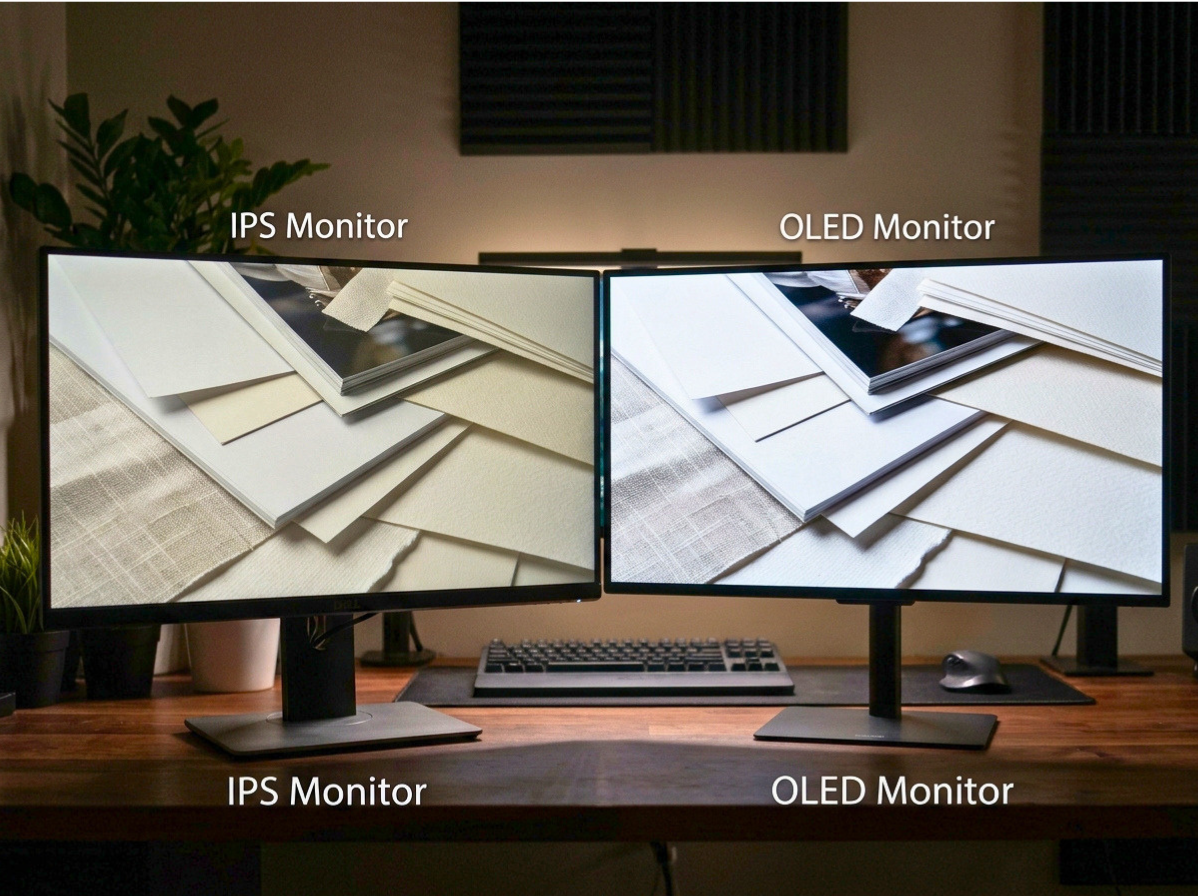
Contrast is defined as the difference in luminance between the brightest white and the darkest black a display can produce. In a dark room, your eyes adapt to lower light levels, making high contrast settings appear intense. However, in a bright room, ambient light reflects off the screen surface, effectively washing out the blacks. This reduces the perceived contrast ratio, making the image appear flat or faded.
To compensate, many users instinctively increase the brightness setting. While this helps visibility, it can also lead to increased power consumption and potential glare issues. The goal is to find a setting that maintains legibility without causing the screen to act like a light source that competes with your room’s ambient illumination.
Key Settings for Bright Environments
When configuring your display for a sunlit office or a room with overhead lighting, consider the following adjustments:
- Brightness: Increase this to match the ambient light level. If your monitor has an auto-brightness sensor, enable it to allow the display to adapt dynamically to changing light conditions throughout the day.
- Contrast: Keep this at a moderate level. Increasing contrast too high can cause a loss of detail in bright areas, often referred to as clipping.
- Gamma: Adjusting the gamma setting can help improve the visibility of mid-tones, which are often the first to disappear under bright light.
Comparison of Display Technologies
Not all monitors handle bright environments equally well. The underlying panel technology plays a significant role in how light is managed.
| Panel Type | Bright Room Performance | Key Characteristic |
|---|---|---|
| IPS | Good | Excellent color consistency and viewing angles. |
| VA | Moderate | Higher native contrast but can suffer from color shift. |
| TN | Poor | Fast response times but limited viewing angles and color accuracy. |
| OLED | Excellent | Perfect blacks, but prone to reflections on glossy surfaces. |
Practical Steps to Reduce Glare
Adjusting your monitor settings is only half the battle. Managing the physical environment is equally important for maintaining visual clarity.
- Positioning: Place your monitor perpendicular to windows. Avoid facing windows directly or having them directly behind you, as this creates either glare or silhouetting.
- Monitor Hoods: Consider using a monitor hood or shade. These physical attachments block stray light from hitting the screen surface, significantly improving perceived contrast.
- Matte Screen Protectors: If your monitor has a glossy finish, a high-quality matte screen protector can diffuse reflections. Note that this may slightly reduce image sharpness.
- Lighting Control: Use blinds or curtains to soften harsh sunlight. If using artificial light, opt for indirect lighting or task lamps that do not point directly at the screen.
Limitations and Trade-offs
It is important to recognize that there are limits to how much you can improve visibility through settings alone. Pushing brightness to the maximum level can shorten the lifespan of the monitor’s backlight, particularly in older LED-backlit models. Furthermore, extreme brightness settings can cause eye fatigue over long periods. If your room is exceptionally bright, the most effective solution is often to reduce the ambient light rather than forcing the monitor to overpower it.
Additionally, color-critical work, such as photo or video editing, requires a controlled environment. If you are performing professional color grading, relying on monitor settings to combat bright light is not recommended, as it can skew your perception of color accuracy and black levels.
Conclusion
Optimizing your monitor for a bright room involves a combination of strategic display settings and environmental adjustments. By balancing brightness and contrast while minimizing direct reflections, you can create a comfortable and productive workspace. Remember that the best setting is one that allows for clear visibility without causing discomfort during extended use. When in doubt, prioritize physical light management over pushing your display’s hardware to its limits.